
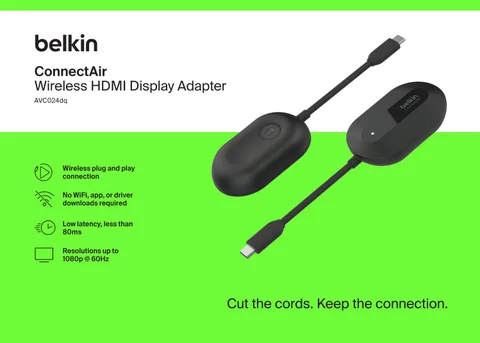
The Belkin ConnectAir Wireless HDMI Display Adapter sounds beautifully simple: plug one piece into your laptop or tablet, plug the other into a display, and your screen appears wirelessly without apps, Wi-Fi, Bluetooth, or a conference-room cable snake across the floor.
That promise is exactly why it is appealing.
It is also why buyers should slow down before ordering.
This is not the kind of product you buy only because the phrase “wireless HDMI” sounds convenient. The ConnectAir can be a very clean solution for presentations, classrooms, meeting rooms, hotel TVs, shared workspaces, and quick screen sharing. But it also has a few practical requirements that decide whether it feels brilliant on day one or immediately annoying after unboxing.
“The ConnectAir is not a magic replacement for every HDMI cable. It is a cleaner way to share a compatible screen in the right environment.”
The Big Question Before You Commit
Before buying the Belkin ConnectAir, answer this first:
Are you trying to replace a messy presentation cable, or are you trying to replace every wired display connection in your life?
Those are two very different expectations.
| Buyer Expectation | Reality Check |
|---|---|
| “I want wireless screen sharing for meetings.” | This is where the product makes the most sense. |
| “I want a 4K home theater wireless HDMI system.” | Lower that expectation. This is more about convenience than cinema-grade performance. |
| “I want to use it with any USB-C device.” | Not every USB-C port supports video output. |
| “I want zero-lag gaming.” | Wireless display latency still matters. This is not the safest gaming-first purchase. |
| “I want to avoid Wi-Fi setup.” | This is one of the strongest reasons to consider it. |
The ConnectAir is best understood as a presentation-first, cable-removal device, not a universal display miracle.
1. Verify Your USB-C Port Before Ordering
This is the detail buyers are most likely to miss.
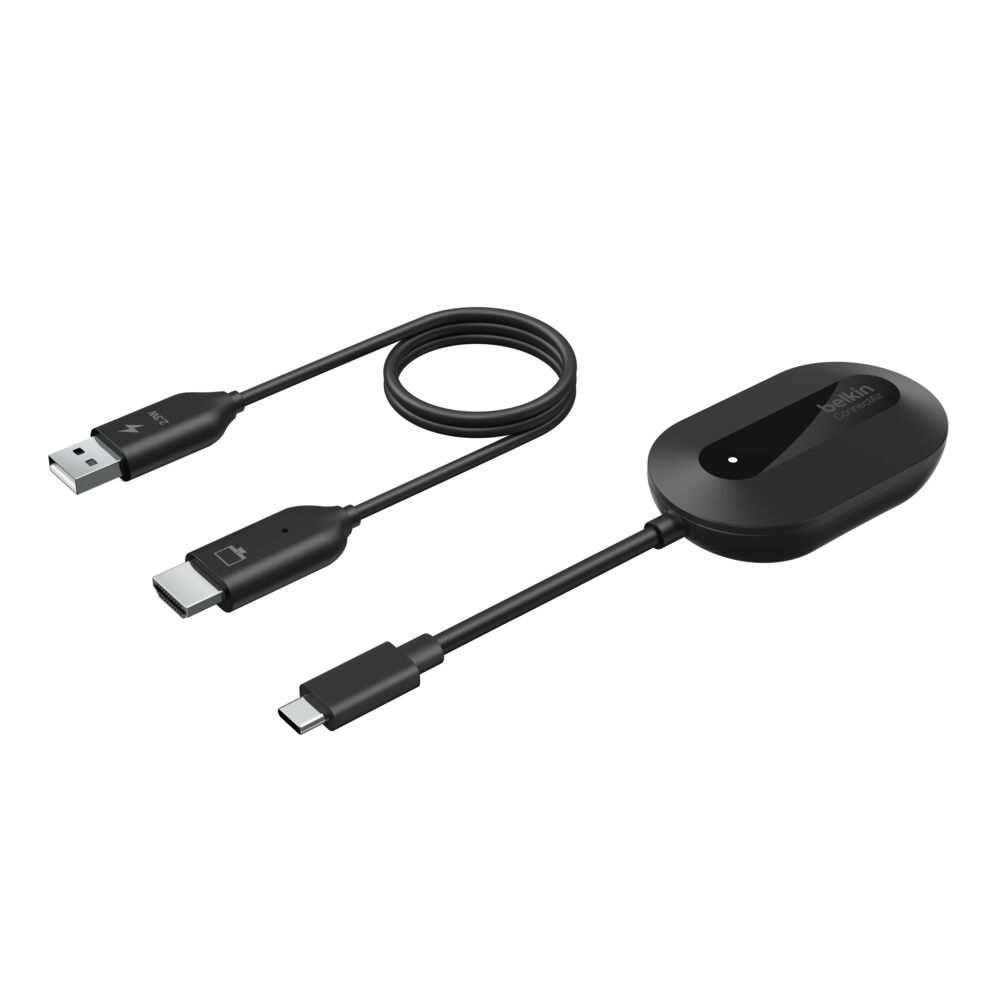
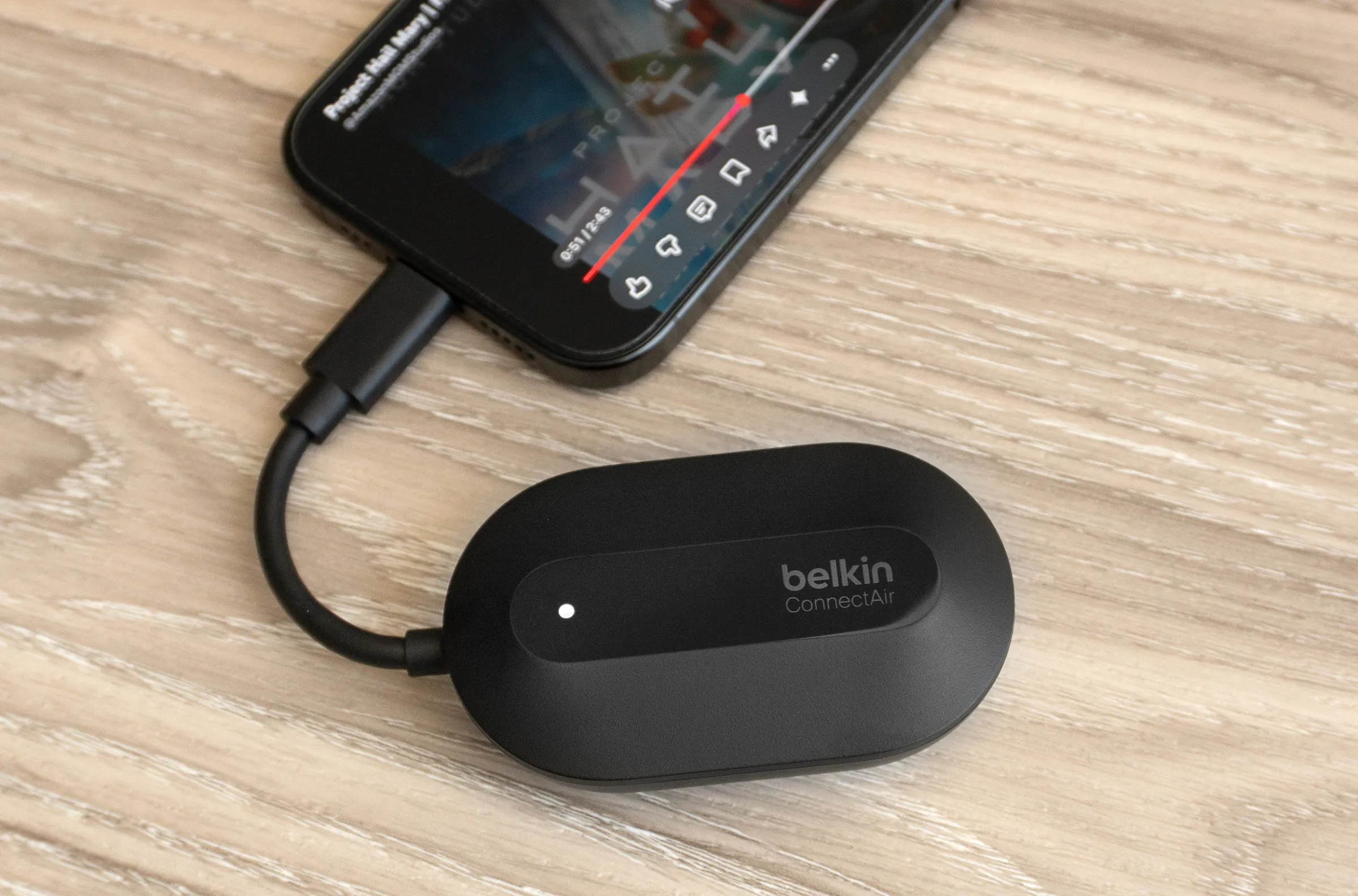
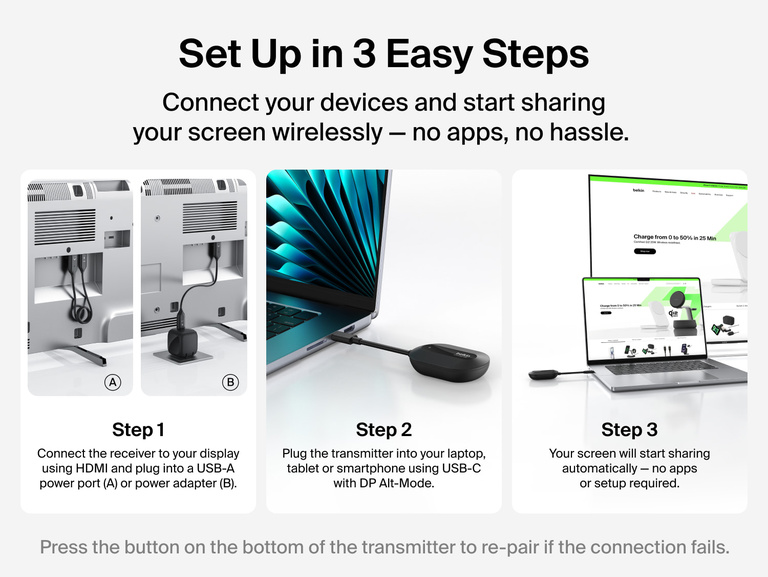
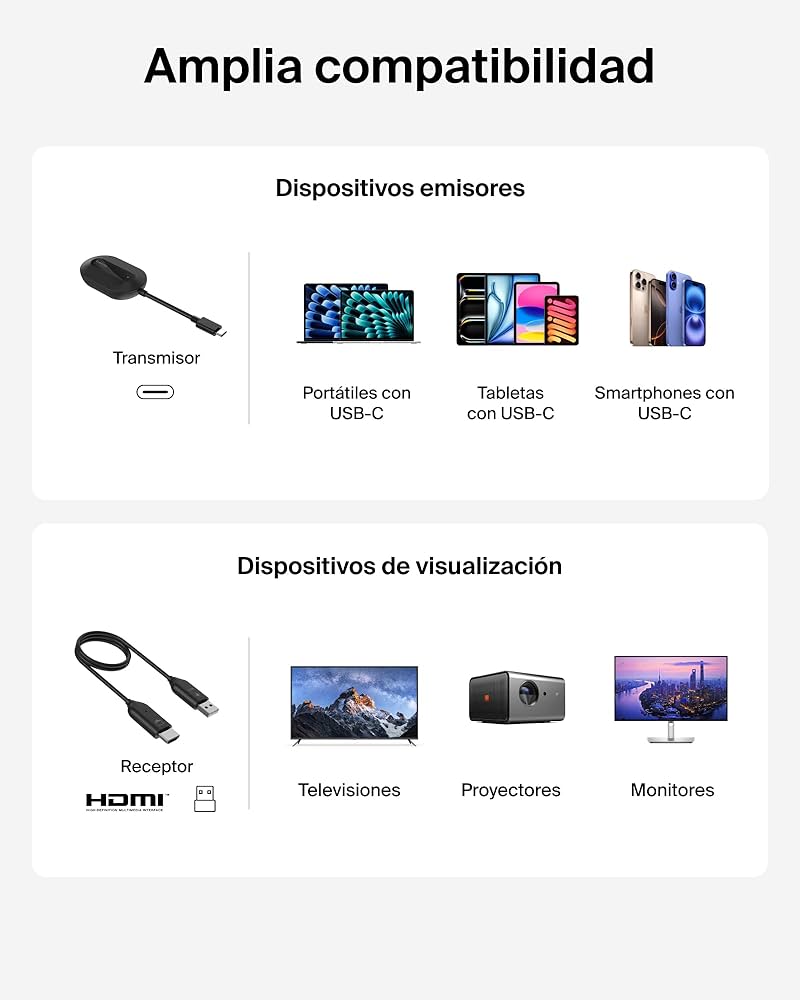
The transmitter side connects through USB-C, but that does not automatically mean every USB-C laptop, tablet, or phone will work. Your device needs to support video output over USB-C, usually referred to as DisplayPort Alt Mode or USB-C display output.
That tiny technical requirement is the difference between “plug and play” and “why is nothing happening?”
Check before buying:
| Device Type | What to Confirm |
|---|---|
| Windows laptop | USB-C port supports display output, not just charging/data |
| MacBook | Most modern models should be fine, but still check external display support |
| iPad / tablet | Confirm USB-C video output support |
| Android phone | Confirm external display support; not all phones support it |
| Work laptop | Check whether company security settings block external display behavior |
“USB-C is a shape. It is not a promise. Two ports can look identical and behave completely differently.”
If your device cannot send video through USB-C, the ConnectAir will not rescue it. That is not a Belkin problem. That is the messy little circus of USB-C naming, because apparently life was getting too easy.
2. Remember That the Display Side Still Needs Power
The word “wireless” can make buyers imagine a totally cable-free setup. Not quite.
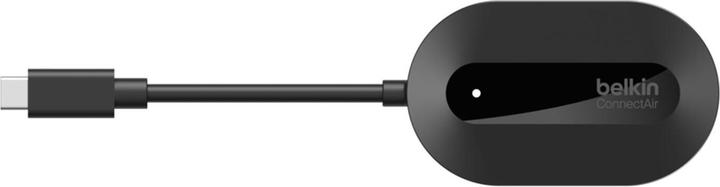
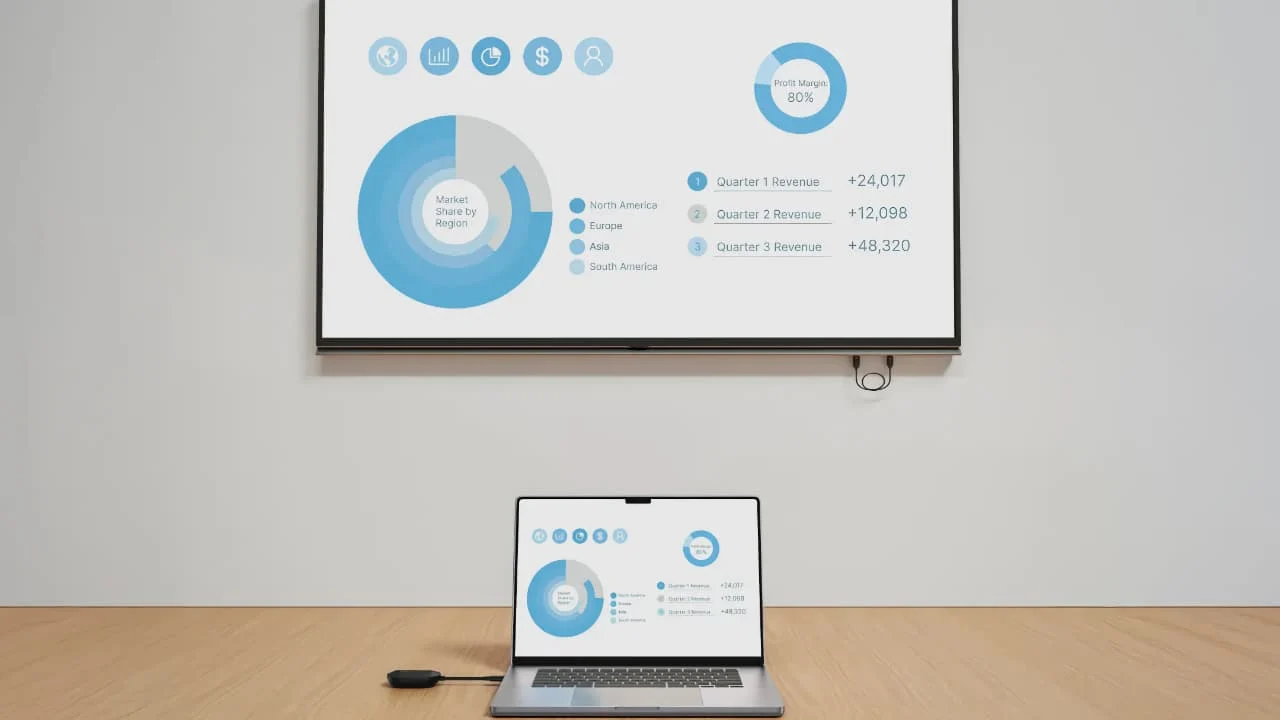
The ConnectAir removes the long HDMI cable between your device and the screen, but the receiver still needs to connect to the display and receive power. That means your TV, monitor, projector, or conference display needs the right physical setup nearby.
Before checkout, inspect the display area:
| Requirement | Why It Matters |
|---|---|
| Free HDMI port | The receiver needs somewhere to plug in |
| USB power near the display | The receiver needs power |
| Space behind the TV/projector | Bulky wall-mounted setups may be awkward |
| Accessible ports | Ceiling-mounted projectors can turn “plug and play” into “ladder and regret” |
| Stable placement | A receiver hanging loosely behind a display may affect reliability |
This is one of those details that sounds boring until you are standing under a projector with no accessible USB port and a meeting starting in five minutes.
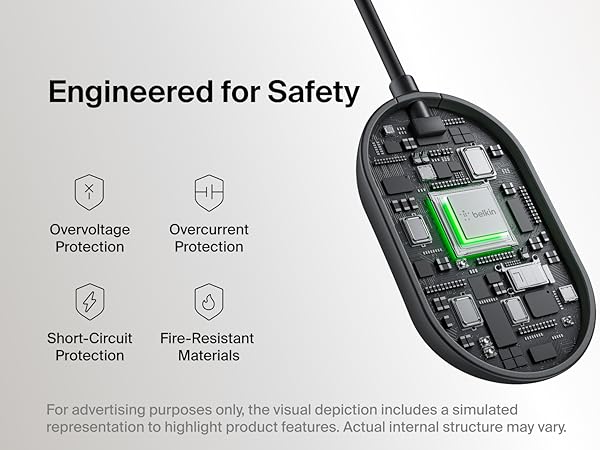
3. Do Not Buy It Expecting 4K
The ConnectAir’s headline convenience is wireless HDMI-style screen sharing, but the realistic quality expectation should be Full HD, not 4K.
For slides, dashboards, documents, browser tabs, training sessions, video calls, classroom content, and casual viewing, 1080p can be perfectly sensible. For sharp 4K desktop work, high-end media rooms, detailed creative editing, or a giant premium TV setup, it may feel like a compromise.
Where 1080p is probably enough
- PowerPoint and Keynote presentations
- Google Slides, PDFs, spreadsheets, dashboards
- Classroom displays
- Internal business demos
- Hotel TV screen sharing
- Casual photo/video viewing
- Shared meeting room use
Where you may want to pause
- 4K movie setups
- Color-critical creative work
- Large-screen fine-text desktop use
- Gaming
- High-refresh monitor setups
- Professional video editing preview workflows
“The ConnectAir’s value is not maximum resolution. Its value is walking into a room and sharing your screen without begging the display gods for mercy.”
If the first thing you care about is pixel density, this probably is not the product that should get your money.
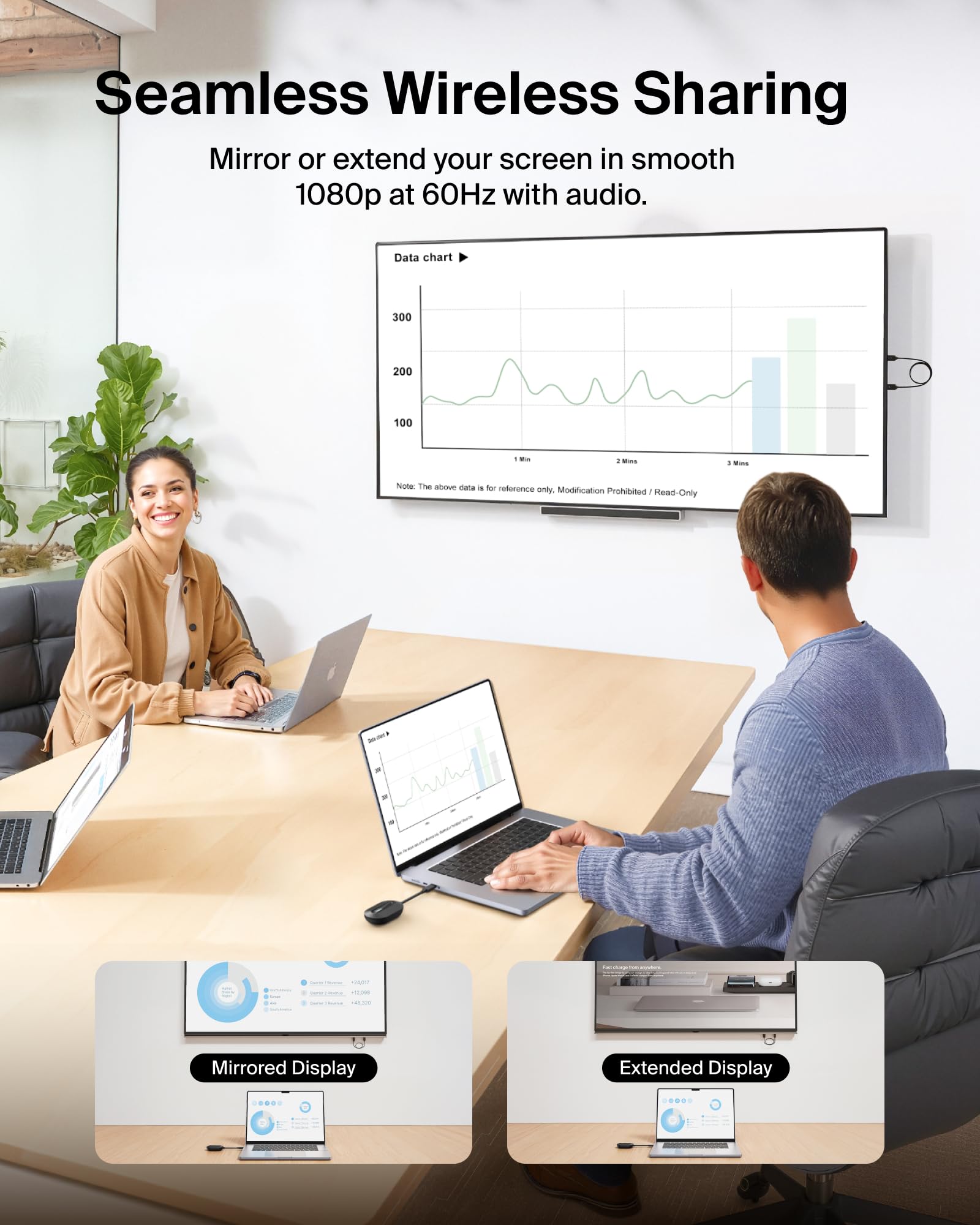
4. The “No Wi-Fi Required” Claim Is a Bigger Deal Than It Sounds
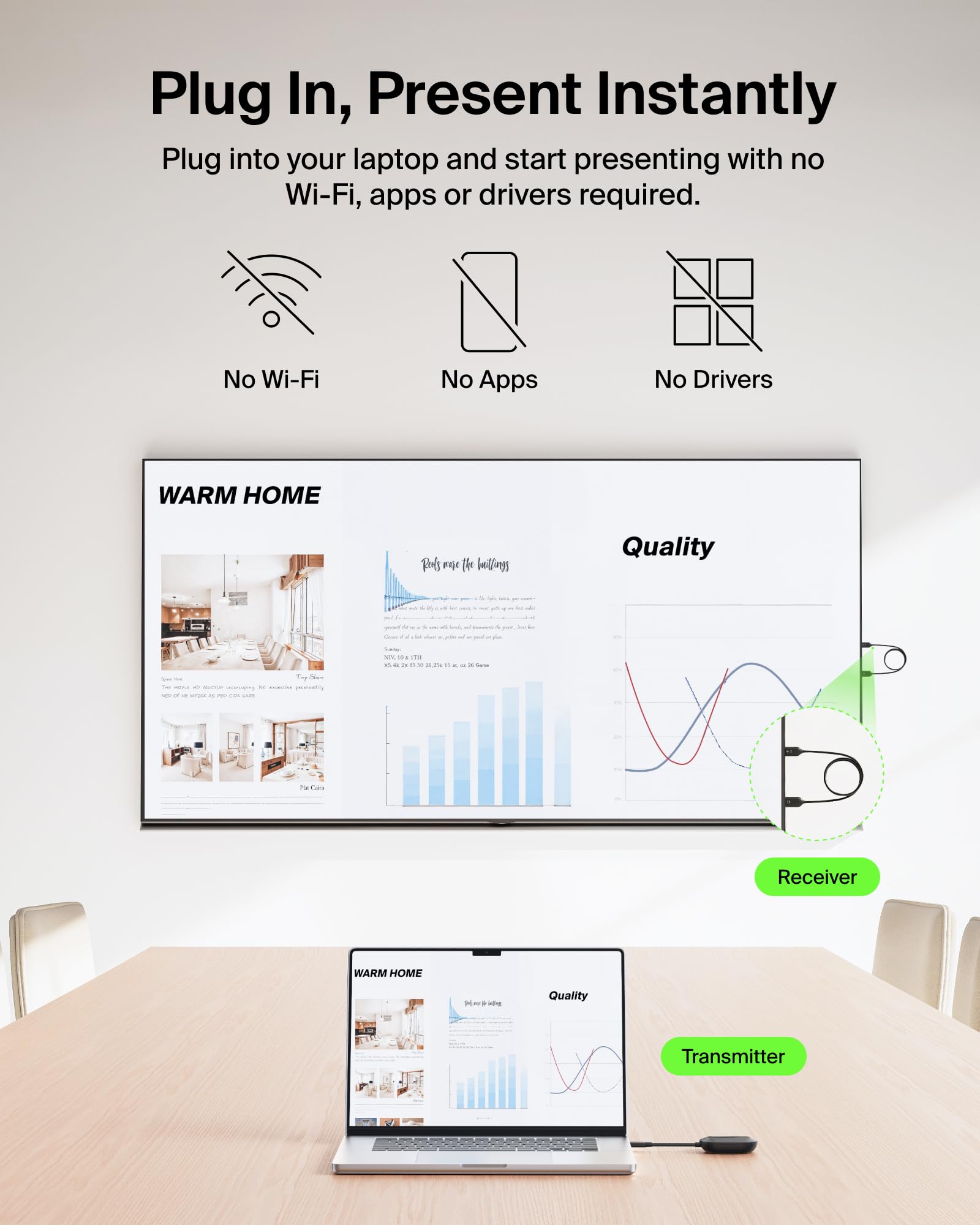
One of the most attractive parts of the ConnectAir is that it does not rely on your building’s Wi-Fi network, Bluetooth pairing, app installation, or complicated software setup.
That matters more than many buyers realize.
In offices, hotels, schools, coworking spaces, and client sites, Wi-Fi can be restricted, overloaded, password-protected, segmented, or blocked by IT policies. App-based casting can also become annoying when one device supports AirPlay, another supports Google Cast, and the conference room display supports neither properly.
The ConnectAir’s appeal is that it behaves more like a direct display bridge.
This matters most if you:
| You Often Present In… | Why ConnectAir May Help |
|---|---|
| Client offices | You may not get network access |
| Classrooms | Wi-Fi may be unreliable or locked down |
| Conference rooms | Shared display systems are often inconsistent |
| Hotels / rentals | Casting to TVs can be messy |
| Trade shows | Networks are crowded and unpredictable |
| Training rooms | Multiple presenters need fast handoff |
This is where the product can pleasantly exceed expectations. Not because it is magical, but because it avoids the usual “please download this app / join this network / enter this code / try again” nonsense.
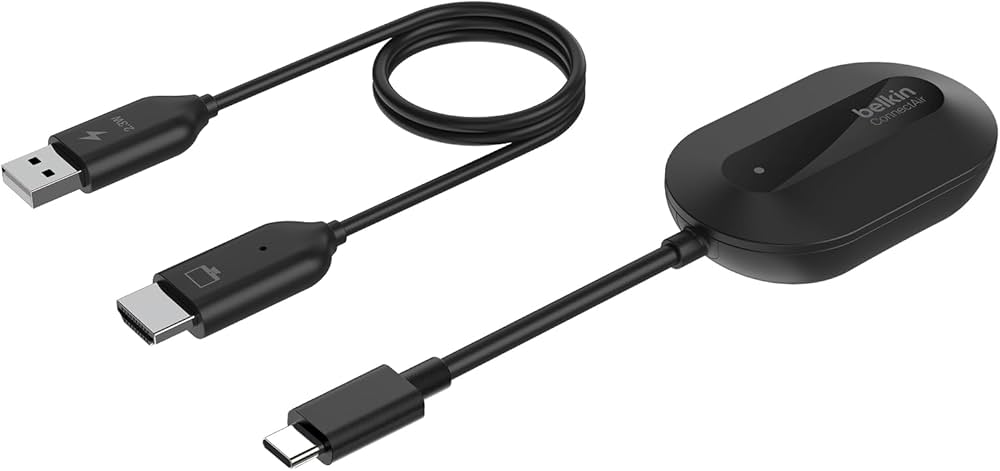
5. Wireless Range Is Useful, But Your Room Still Matters
Belkin promotes long-range wireless freedom, which is genuinely useful for large rooms, classrooms, or presentation spaces. But buyers should treat range claims as best-case conditions, not a guarantee that every wall, cabinet, projector mount, and crowded wireless environment will behave perfectly.
Wireless performance is affected by boring real-world things:
- Thick walls
- Metal cabinets
- AV racks
- Distance between transmitter and receiver
- Interference from other wireless devices
- People moving through the signal path
- The display being mounted in an awkward enclosed space
In a normal room, this may be a non-issue. In a complicated venue, it can matter.
“Wireless range is not just about distance. It is about what sits between the two pieces.”
Before buying, picture the actual room. Not the marketing photo. Your real room. The one with the weird TV mount, the router in the corner, the glass wall, the metal cabinet, and that one HDMI port nobody can reach without becoming a gymnast.
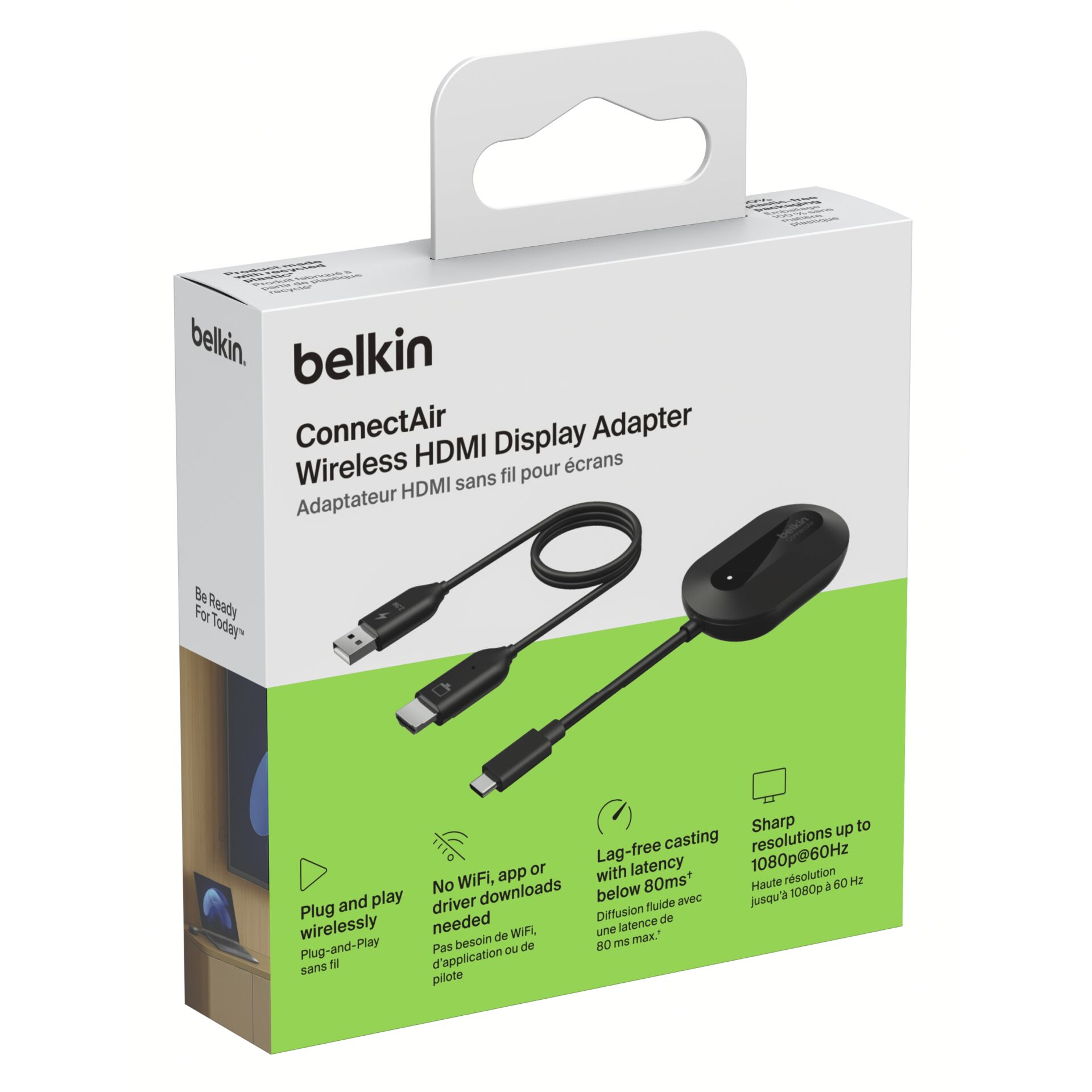
6. Check Whether You Need Mirror Mode or Extend Mode
Many buyers casually say “I want to show my screen,” but there are two different use cases:
| Mode | What It Means | Best For |
|---|---|---|
| Mirror | The display shows the same thing as your device screen | Presentations, demos, training |
| Extend | The display becomes a second screen | Presenter notes, multitasking, productivity |
The ConnectAir is designed for screen sharing, but your actual experience depends partly on how your device handles external displays.
Before buying, ask yourself:
Do I only need to mirror, or do I need a true extended display workflow?
If you present slides and want private notes on your laptop while the audience sees only the slide deck, extended display behavior matters. Confirm that your device and apps support the exact workflow you expect.
7. It May Not Be the Right Purchase for Competitive Gaming
This is where expectation management matters.
The ConnectAir can be responsive enough for many normal screen-sharing tasks, but wireless display adapters are not the same as a direct wired HDMI connection for fast gaming. Even low latency can be noticeable if you are playing reaction-based games, using a mouse heavily, or expecting instant input response.
Safe expectation:
| Use Case | Fit |
|---|---|
| Presenting slides | Strong fit |
| Showing documents | Strong fit |
| Watching casual video | Reasonable fit |
| Sharing travel photos | Strong fit |
| Classroom content | Strong fit |
| Competitive gaming | Weak fit |
| Fast mouse/keyboard work on a big screen | Depends on sensitivity |
| Video editing precision | Not ideal |
“If your hands need instant response, a cable is still the boring champion.”
For business sharing, the product makes sense. For gaming-first buyers, reconsider.
8. Protected Streaming Content Deserves a Second Look
A buyer may assume: “If it can show my screen, it can show Netflix, Disney+, Prime Video, or every protected streaming app.”
Not always.
Protected video services can behave differently depending on device, app, display chain, and copy-protection handling. Sometimes screen-sharing hardware works fine. Sometimes you get a black screen, blocked playback, or inconsistent behavior.
Before buying the ConnectAir specifically for streaming, check the product page and your intended device/app combination carefully.
Ask yourself:
- Am I mainly buying this for presentations?
- Or am I buying it to watch paid streaming services on hotel TVs?
- Does my device allow external display playback from those apps?
- Does the content service block screen sharing?
- Am I okay if some protected apps behave differently?
This does not make the ConnectAir a bad product. It simply means buyers should not treat “wireless HDMI” as a universal streaming loophole.

9. Multi-User Sharing Sounds Great, But Plan the Hardware
One attractive use case is a shared display where multiple people can take turns presenting. That is valuable in a meeting room because it avoids cable swapping and reduces the “whose laptop is connected?” dance.
But buyers should verify what is included in the box and what is needed for multiple presenters.
If the setup only includes one transmitter and one receiver, then every additional presenter may need access to a compatible transmitter or you may still end up passing one dongle around the table.
| Scenario | What To Consider |
|---|---|
| One presenter | Standard setup is simple |
| Two or more regular presenters | Check whether extra transmitters are needed |
| Shared conference room | Decide where the transmitter lives |
| Classroom use | Think about loss, labeling, and storage |
| Client meetings | Bring the transmitter with you, not just assume the room has one |
“A wireless adapter can remove the HDMI cable problem, but it does not remove the human problem of people misplacing small expensive things.”
For a business setup, label the pieces. Seriously. Tiny black adapters have a spiritual gift for disappearing.

10. The Best Buyer Is Not Always the Most Tech-Savvy Buyer
The ConnectAir is especially attractive for people who do not want to manage software, drivers, Wi-Fi passwords, or platform-specific casting systems.
That means it may actually be more useful for mixed-device environments than for someone who already lives perfectly inside one ecosystem.
Strong-fit buyers
- Sales teams presenting in different rooms
- Teachers and trainers
- Traveling professionals
- Small offices with shared displays
- People who hate conference-room HDMI chaos
- Teams using mixed Windows, macOS, tablets, and phones
- Anyone who wants fewer apps and fewer network issues
Buyers who should pause
- Gamers
- 4K-first home theater users
- Buyers with non-video USB-C devices
- People expecting a totally cable-free receiver setup
- Users who need guaranteed protected streaming playback
- Anyone who cannot access the HDMI/USB ports behind the display
The product is less about showing off specs and more about reducing friction. That is either exactly what you need or not enough to justify the price.
11. What Matters More Than the Headline Feature
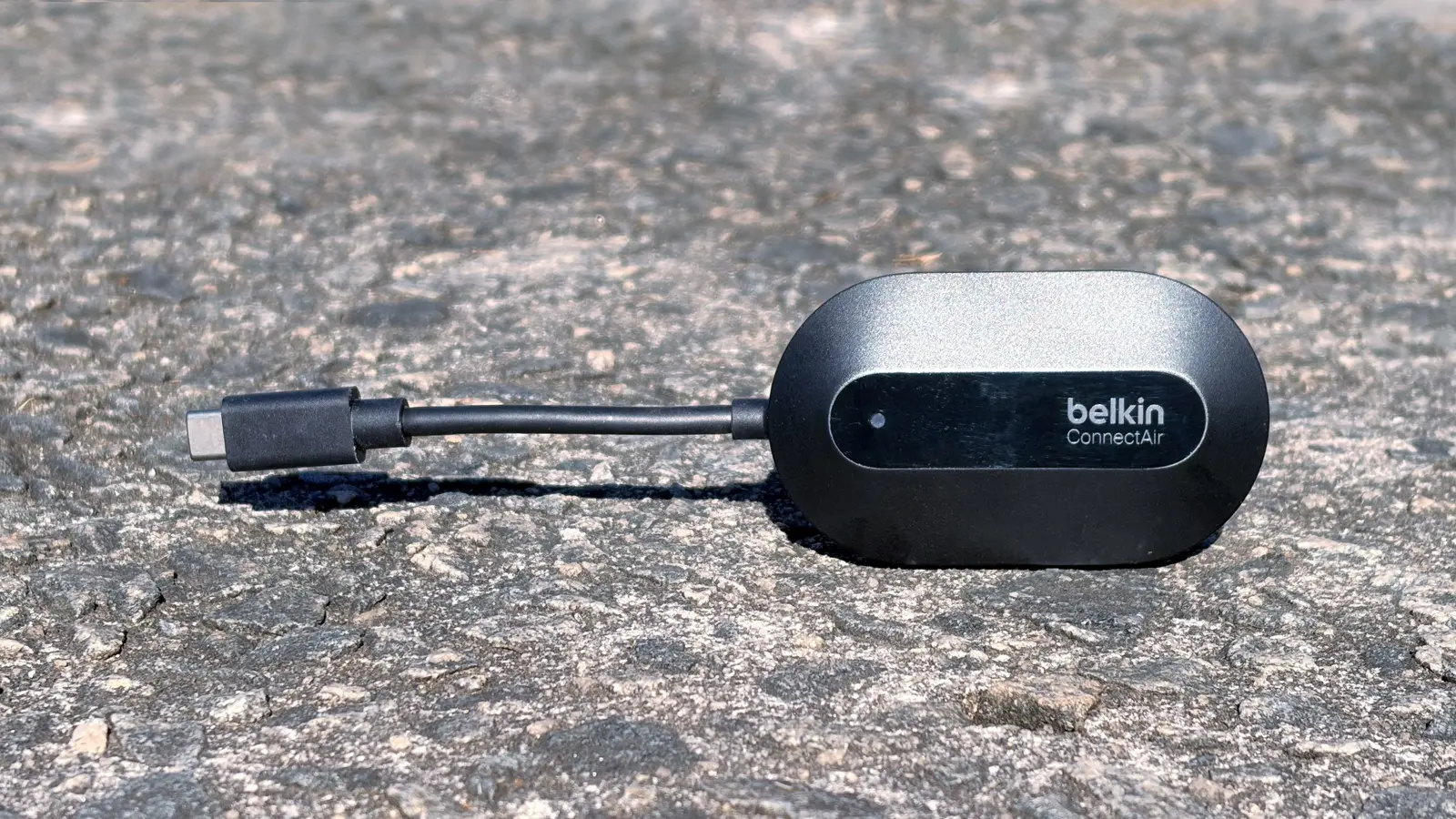
The headline feature is wireless HDMI-style display sharing.
But the real buying decision should come down to these four things:
| Priority | Why It Matters More Than the Headline |
|---|---|
| Device compatibility | If your USB-C port does not output video, nothing else matters |
| Display access | You need HDMI and power near the screen |
| Use case | Presentations are different from gaming or home cinema |
| Room reliability | Range depends on the real environment, not just the box claim |
The wrong buyer will focus only on “wireless.”
The smart buyer will ask: wireless from what, to what, in which room, for what purpose?
That one sentence will save people from most bad purchases.
12. The Product Page Details Worth Reading Twice
Before clicking buy, do not skim the product page like everyone else does. Read the small practical details.
Look specifically for:
- Supported resolution and refresh rate
- Device compatibility notes
- USB-C video output requirement
- Receiver power requirement
- What is included in the box
- Whether extra transmitters are sold separately
- Return policy
- Warranty details
- Any protected-content notes
- Any compatibility exclusions
This is not paranoia. This is how you avoid buying a convenience product that becomes your newest drawer ornament.
“The boring details are where wireless display products either become effortless or become a support ticket.”
13. The Warning Sign Behind the Attractive Selling Points
The most attractive selling point is also the one that can mislead buyers:
“Plug and play.”
Yes, it can be simple. But “plug and play” assumes the correct device, correct port, correct display, correct power, and a reasonable wireless environment.
That is a lot of invisible fine print packed into three friendly words.
“Plug and play” works best when:
- Your source device supports USB-C display output
- The receiver has HDMI and USB power available
- The room is not hostile to wireless signals
- You are not demanding 4K or gaming-level latency
- You are using it for screen sharing, not every media scenario imaginable
The setup may genuinely be easy. Just do not confuse easy setup with universal compatibility.
14. What Could Feel Wrong Immediately After Unboxing
The ConnectAir will feel like the wrong purchase quickly if one of these happens:
| Immediate Frustration | Likely Cause |
|---|---|
| Nothing appears on screen | Device may not support USB-C video output |
| Receiver cannot be powered | No accessible USB power near display |
| Image quality feels underwhelming | Buyer expected 4K |
| Mouse movement feels delayed | Buyer expected wired-level latency |
| Streaming app shows black screen | Protected content issue |
| Setup looks messy behind TV | Ports are awkward or receiver has nowhere clean to sit |
| Multi-user use is clumsy | Only one transmitter is available |
This is why the pre-purchase check matters. The product is not complicated, but the environment around it can be.
15. The Expectation You Should Lower — And the One That May Be Exceeded
Lower this expectation:
It will not replace every HDMI cable in every scenario.
Do not buy it expecting 4K perfection, gaming-grade response, flawless protected streaming, and universal compatibility with every USB-C device ever made.
But raise this expectation:
It may be more useful than expected in real presentation life.
The beauty of a device like this is not that it wins a spec war. It is that it can remove the awkward little interruptions that make shared screens annoying: wrong cable, short cable, no adapter, weird TV input, network casting failure, software prompt, Bluetooth confusion, guest Wi-Fi problem, meeting delay.
That kind of friction is small until it happens every week.
“The ConnectAir is for people who value clean handoff more than maximum technical ambition.”
Final Buying Checklist
Before buying the Belkin ConnectAir Wireless HDMI Display Adapter, make sure you can answer yes to most of these:
| Question | Yes / No |
|---|---|
| Does my source device support USB-C video output? | |
| Does my display/projector have an available HDMI port? | |
| Is there USB power available near the display? | |
| Am I okay with 1080p instead of 4K? | |
| Is my main use presentation, sharing, teaching, or casual viewing? | |
| Am I not buying it primarily for competitive gaming? | |
| Have I checked whether protected streaming apps matter for my use? | |
| Is the receiver location physically accessible? | |
| Do I know whether I need one transmitter or multiple? | |
| Am I buying it to reduce setup friction, not to chase perfect AV performance? |
Bottom Line: Buy It for Friction, Not Fantasy
The Belkin ConnectAir Wireless HDMI Display Adapter makes the most sense for buyers who are tired of cables, adapters, Wi-Fi casting problems, and awkward shared-display setups. It is especially compelling for meetings, classrooms, travel, and mixed-device environments where simple screen sharing matters more than premium 4K output.
But the buyer should commit with clear expectations.
This is not the product to buy blindly because “wireless HDMI” sounds futuristic. It is the product to buy when you have confirmed your USB-C device supports video output, your display has HDMI and power available, and your real goal is cleaner screen sharing without network drama.
Buy it if you want an easier way to present. Pause if you expect it to replace a perfect wired setup everywhere.
Explore the Belkin ConnectAir Wireless HDMI Display Adapter Gallery
Every image from this article, gathered in one clean place. Tap any photo to open it larger.